Installing Julia 1.13 and VSCode
Introduction
Installing Julia is easy, but perhaps you also want to install an integrated development environment (IDE) or a version control system (e.g. git), therefore I give some hints how to do that in this blog post.
Furthermore there are different ways to install multiple Julia versions in parallel and to keep your version up-to-date which are also explained in this blog post.
Julia 1.13 was released in September 2026. Highlights of this version are explained here. In short:
- packages precompile about 30% faster than with Julia 1.12
- the REPL has syntax highlighting and a much better history search
- there are no breaking changes, so upgrading from 1.11 or 1.12 should be painless
Installation of Julia
Windows
Windows
Please download and install Julia using juliaup. Launch the Command Prompt app and type:
winget install --name Julia --id 9NJNWW8PVKMN -e -s msstore
juliaup add 1.13
juliaup update
juliaup default 1.13
If that doesn’t work, download https://install.julialang.org/Julia.appinstaller and double-click on the downloaded file to install it.
Git for Windows
Most likely you want to have a bash shell (many projects require this) and the git version control system (very useful if you develop software).
You can download it from the Git website . During installation, select VSCode (or your preferred editor) as editor and select bash as your preferred terminal.
Optional
It is suggested to install Windows Terminal . Copy and paste works better, unicode works much better and you can use it with bash or Command Prompt, whatever you prefer. It is suggested to set one of these two as default using the Settings menu of Windows Terminal.
Uninstallation
Uninstallation is preferably performed by using the Windows uninstaller. The directory in %HOME%/.julia can then be deleted if you want to remove all traces of Julia (this includes user installed packages).
Linux
Linux
Copy and paste the following line to install julia:
curl -fsSL https://install.julialang.org | sh
Restart your terminal, and then execute:
juliaup add 1.13
juliaup update
juliaup default 1.13
It is suggested to add the following line to your .bashrc file:
alias jl='./bin/run_julia'
This makes it possible to run Julia with the shortcut jl later, if you have a run_julia script in the bin folder of your projects. I suggest to use such a script, the most simple version of it would just contain the line julia --project .
Mac
Mac
Copy and paste the following line to install julia:
curl -fsSL https://install.julialang.org | sh
Restart your terminal, and then execute:
juliaup add 1.13
juliaup update
juliaup default 1.13
Managing multiple Julia versions
With juliaup you can keep several Julia versions installed in parallel. Some useful commands:
juliaup status        # list installed versions and show the default
juliaup add lts       # install the long-term-support version
juliaup update        # update all installed versions to the latest patch release
To run a version that is not the default, use for example julia +lts or julia +1.12 .
Installation of the IDE VSCode
It is useful to install the integrated development environment VSCode, even though it is not required. You can also use any editor of your choice.
VSCode provides syntax highlighting, but also the feature “goto definition” which can help to understand and explore the code.
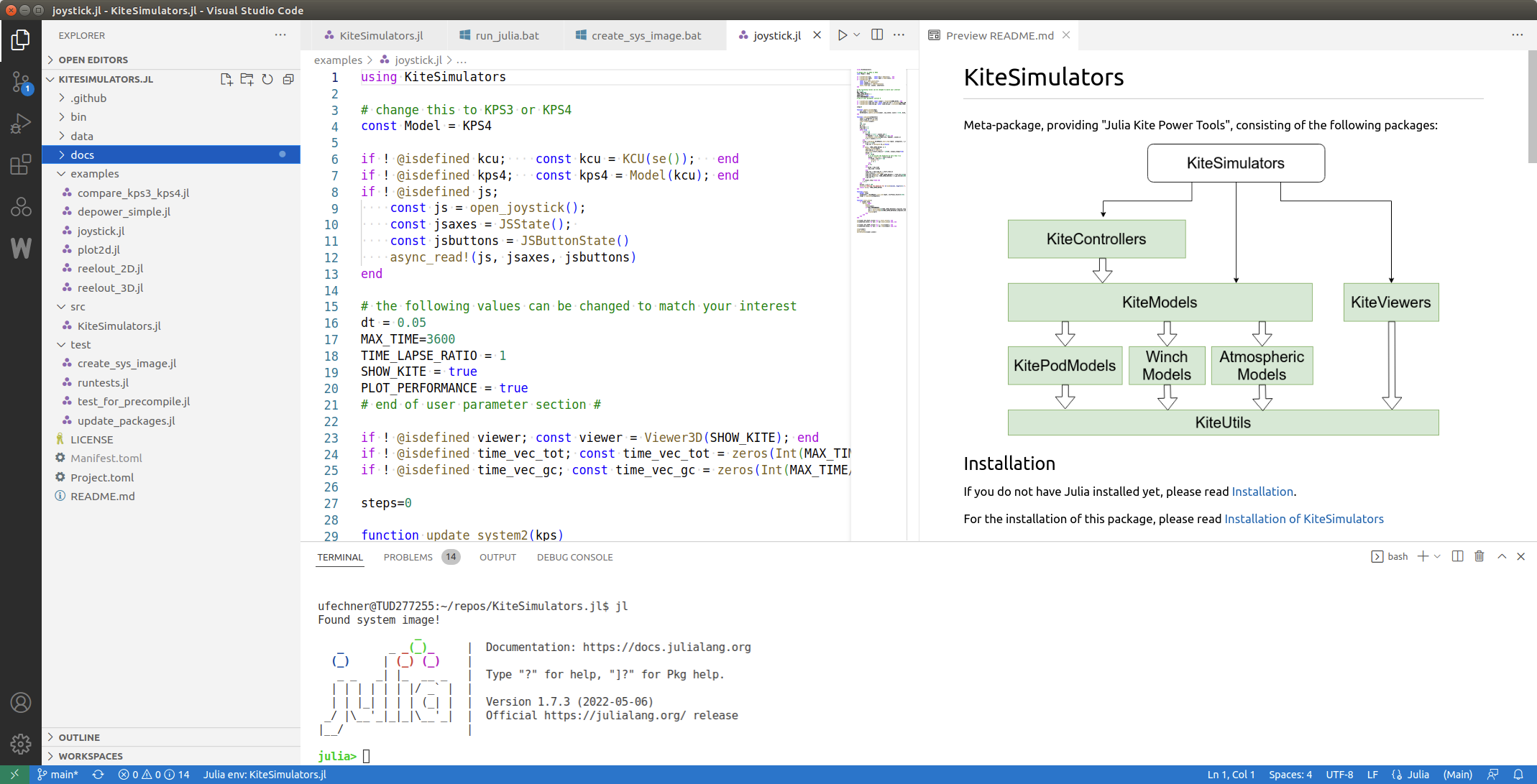
You can download and install VSCode for all operating systems here .
On Ubuntu Linux, the .deb package from the VSCode website adds the Microsoft package repository, so VSCode is kept up-to-date with the normal system updates.
Installing the Julia extension
- Start or open Visual Studio Code.
- Select View and then click Extensions to open Extension View.
- Enter the term
juliain the marketplace search box. Click the Install button to download the extension.

You successfully downloaded the Julia extension for VS Code.
NOTE: It is recommended that you restart VS Code after installation.
Julia development with VSCode is well documented here: Julia Visual Studio Code Documentation
I would NOT use all the advanced features of julia-vscode, I prefer to just use the vscode terminal and launch julia from the terminal. This makes it easy to launch Julia with any command line options and also to start and restart Julia quickly.
Alternative: the JETLS extension
If you work like me and launch Julia from the terminal anyway, you can use the JETLS extension instead of the Julia extension. JETLS is a new language server for Julia, based on JET.jl and JuliaLowering.jl. It provides type-aware diagnostics, a “goto definition” that also works with macros, and better code completion than the language server of the Julia extension.
JETLS is only a language server. It does not provide the integrated REPL, the plot pane or the debugger of the Julia extension. If you need these features, stay with the Julia extension (JETLS is currently being integrated into it).
To try it, search for JETLS in the Extension View and follow the installation instructions in the JETLS README. Disable the Julia extension while you use JETLS, otherwise two language servers analyse your code at the same time.
Other useful VSCode extensions
- Project Manager
- Even Better TOML
- Code Spell Checker
VSCode supports git out-of-the box.
Alternative: JetBrains IDEs
An alternative to VSCode are the IDEs from JetBrains, for example IntelliJ IDEA or PyCharm, together with the Flexible Julia plugin. This is a commercial offer, but the quality is high and bugs are fixed fast. Free licenses are available for students and researchers.
AI Tools
AI coding assistants can write, explain and debug Julia code, run your tests and fix the failures. They are very useful, but they make mistakes, so always review the changes they make.
Claude Code
If you want good AI support, Claude Code is a good option. It is included in the Claude Pro subscription, which costs about 20 EUR per month. Claude Code works in the terminal, and there is also a VSCode extension. Search for Claude Code in the Extension View to install it.
OpenRouter
A cheaper alternative is OpenRouter. You get one account and one API key for models from many different providers, and you pay per use instead of a monthly fee. A good, very cheap model for programming is DeepSeek V4.1 Flash. You can use OpenRouter models with any coding assistant that supports OpenRouter, for example the VSCode extension Cline.
Kaimon.jl
Kaimon.jl makes AI tools much more efficient when working with Julia. It is an MCP server that gives the AI assistant access to a running Julia session. Without it, the assistant has to start a new Julia process for every command and wait for packages to load and compile again. With Kaimon, the assistant runs code in the same Julia session that you see, and it can look up types and methods, run tests and use the debugger without these delays. Kaimon works with Claude Code, VSCode Copilot, Cursor and Gemini CLI. The installation is explained in its README.