Plotting with MakieControlPlots
Introduction
If you develop control systems, you need a few kinds of plots again and again: a signal over time, several signals stacked above each other like on an oscilloscope, an XY plot of a flight path, a Bode plot of a transfer function. MakieControlPlots.jl makes each of these plots with a single function call.
MakieControlPlots is a reimplementation of the ControlPlots.jl API on top of Makie. ControlPlots uses Matplotlib via PyPlot, which needs a Python installation. MakieControlPlots is pure Julia. The function names and keyword arguments are the same as in ControlPlots, so existing scripts keep working.
Features:
- simple plots with the
plot()function - interactive windows with buttons for pan, zoom, home and save
- saving plots as PNG or PDF from the GUI
- oscilloscope-like plots with multiple channels with
plotx() - XY plots with
plotxy() - Bode plots with
bode_plot() - fast 2D animations of particle systems with
plot2d() - LaTeX in labels
- every plot command returns a struct with its parameters. You can save it to a file, load it later, edit the labels and display or export it again.
Interactive windows use GLMakie. Headless export, for example on a CI server, uses CairoMakie.
This is what the GUI looks like:
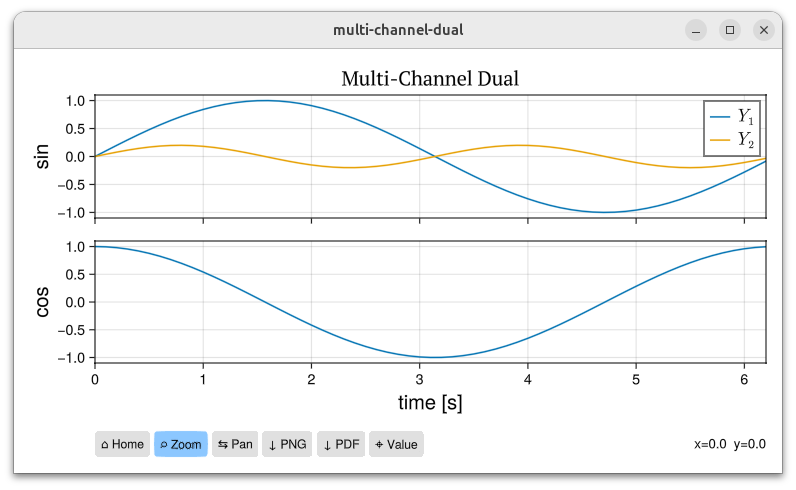
Zoom and pan work much like in Matplotlib: select the zoom or pan button, then drag with the mouse in the plot. The home button resets the view. The PDF save button writes the plot as a high-quality vector graphic, which stays sharp at any size in a paper or thesis. If you want the fonts of your plots to match your LaTeX document, an AI coding assistant can do that for you automatically: give it your LaTeX document and ask it to adapt the fonts of your plots.
Installation
You need Julia 1.11 or newer. If you have not installed Julia yet, see my post Installing Julia 1.13 and VSCode.
Create a new project and add the package:
mkdir plots
cd plots
julia --project=.
using Pkg
pkg"add MakieControlPlots"
The first using MakieControlPlots takes a while, because Makie needs to be precompiled. After that, loading is fast.
A first plot
using MakieControlPlots, LaTeXStrings

X = 0:0.1:2pi
Y = sin.(X)
p = plot(X, Y; xlabel=L"\alpha = [0..2\pi]", ylabel="sin", fig="basic")
A plot window like this should pop up:
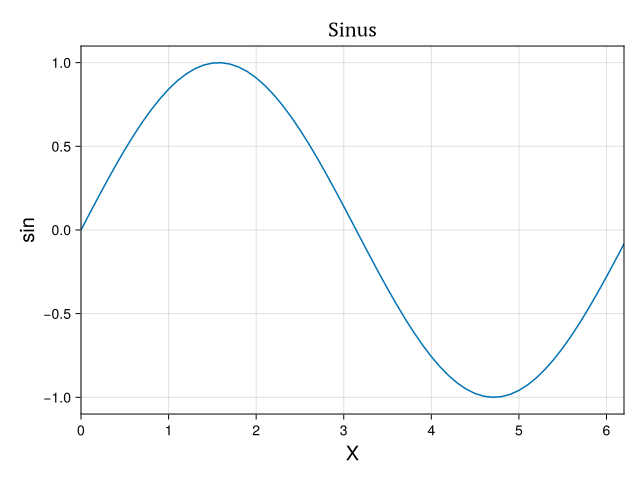
You only need LaTeXStrings if you want to use LaTeX in your labels. LaTeX strings start with the letter L.
The keyword fig sets the name of the window. It is also used as the default file name if you save the plot from the GUI.
Saving and loading plots
Close the plot window. Because p contains all the data and settings of the plot, you can show it again by typing:
p
You can also save it to a file:
save("plot.jld2", p)
Restart Julia and load it again:
using MakieControlPlots
p = load("plot.jld2")
p
This is useful if a simulation runs for a long time: save the plot once, then you can change the labels or the title later without running the simulation again.
To save the plot as an image from a script, keeping the current zoom and pan, use savefig:
p = plot(X, Y; fig="my-plot", disp=true)
savefig("my-plot.png")
By default the file is written to the folder output. The file format (PNG or PDF) is taken from the file extension.
Several signals in one plot
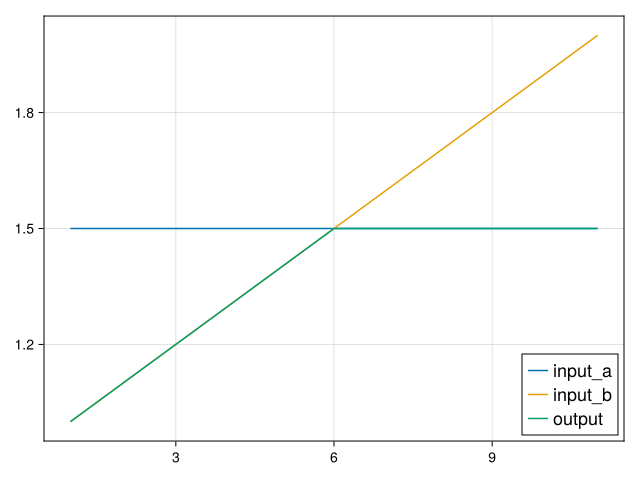
Pass a vector of signals to compare, for example, the inputs and the output of a block:
using MakieControlPlots

x   = 1.5*ones(11)
y   = 1:0.1:2
out = min.(x, y)
plot(1:11, [x, y, out]; labels=["input_a", "input_b", "output"],
     fig="2-in-one", legendsize=18)
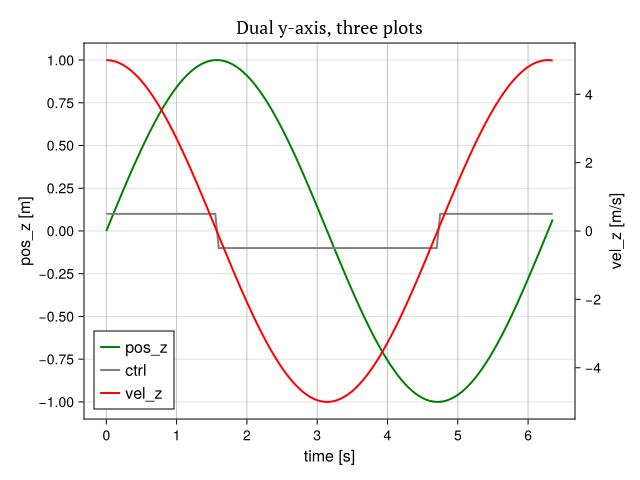
If the signals have different units, use a second y-axis. The signals in the first argument are drawn against the left axis, the last argument against the right axis:
using MakieControlPlots

T = 0:0.05:2pi+0.1
POS_Z = sin.(T)
VEL_Z = 5*cos.(T)
CTRL = 0.1*sign.(5*cos.(T))
p = plot(T, [POS_Z, CTRL], VEL_Z;
         xlabel="time [s]", ylabels=["pos_z [m]", "vel_z [m/s]"],
         labels=["pos_z", "ctrl", "vel_z"], legendsize=16,
         fig="dual-y-axis-3", title="Dual y-axis, three plots")
Multi-channel plots
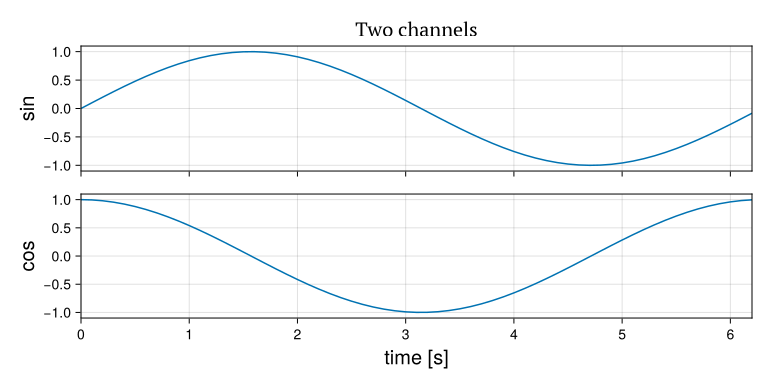
The function plotx stacks several channels above each other, with a shared time axis. When you zoom in on one channel, the others follow.
using MakieControlPlots

T = 0:0.1:2pi
X = sin.(T)
Y = cos.(T)
p = plotx(T, X, Y; ylabels=["sin","cos"], fig="multi-channel", title="Two channels")
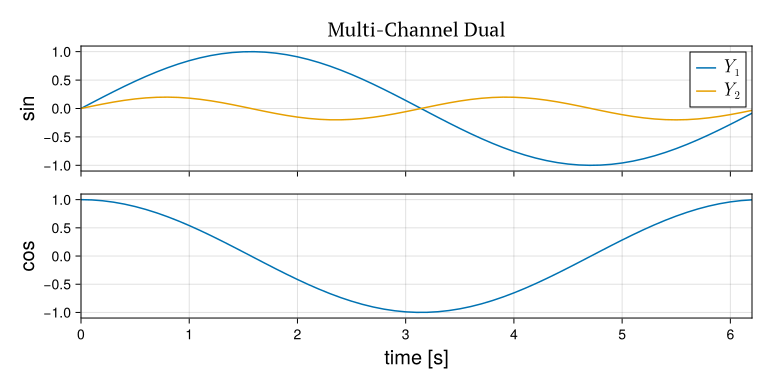
A channel can contain more than one signal. This is useful to show the set value and the actual value of a controlled variable together. In this case labels is a vector of vectors:
using MakieControlPlots, LaTeXStrings

T = 0:0.1:2pi
Y1 = sin.(T)
Y2 = 0.2*sin.(2T)
Y = cos.(T)
p = plotx(T, [Y1, Y2], Y; ylabels=["sin","cos"], labels=[[L"Y_1", L"Y_2"]],
          fig="multi-channel-dual", title="Multi-Channel Dual")
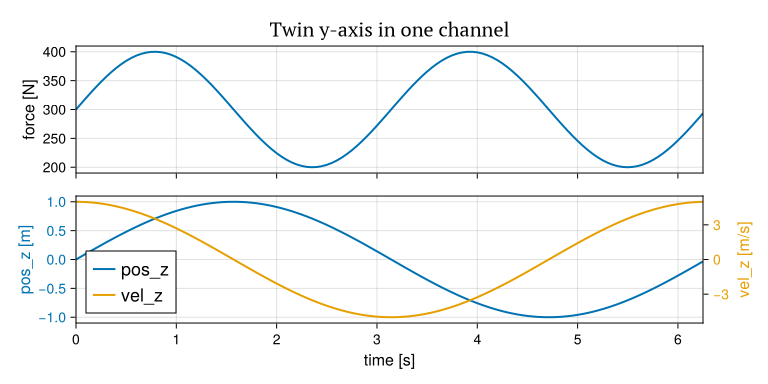
A channel can also have its own second y-axis. Pass two labels for that channel; its last signal is then drawn against the right axis:
using MakieControlPlots

T = 0:0.05:2pi
FORCE = 300 .+ 100*sin.(2T)
POS_Z = sin.(T)
VEL_Z = 5*cos.(T)
p = plotx(T, FORCE, [POS_Z, VEL_Z];
          ylabels=["force [N]", ["pos_z [m]", "vel_z [m/s]"]],
          labels=[nothing, ["pos_z", "vel_z"]],
          fig="multi-channel-twin", title="Twin y-axis in one channel")
plotx has many more options, all with one entry per channel: ylims, linestyle, color, legend_position, annotations with ann and error bars with yerr. They are explained in the README.
XY plots
To plot one signal against another, for example a flight path, use plotxy:
using MakieControlPlots

T = 0:0.05:2pi+0.1
X = sin.(T)
Y = cos.(3T)
p = plotxy(X, Y; xlabel="X", ylabel="Y", fig="xy")
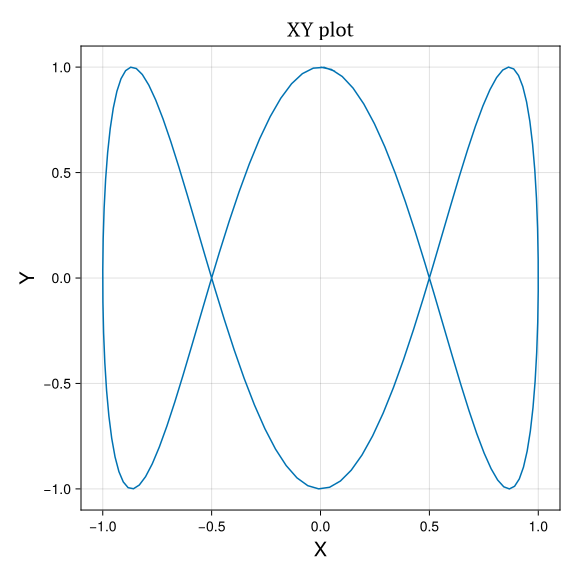
Use aspect=:equal if distances along X and Y must look the same, for example for a path in space. You can also pass a vector of X series and a vector of Y series to draw several curves in one plot.
Bode plots
Bode plots are provided by a package extension, so you need to load ControlSystemsBase first:
using ControlSystemsBase
using MakieControlPlots

P = tf([1.], [1., 1])
bode_plot(P; from=-2, to=2, title="Low pass filter")
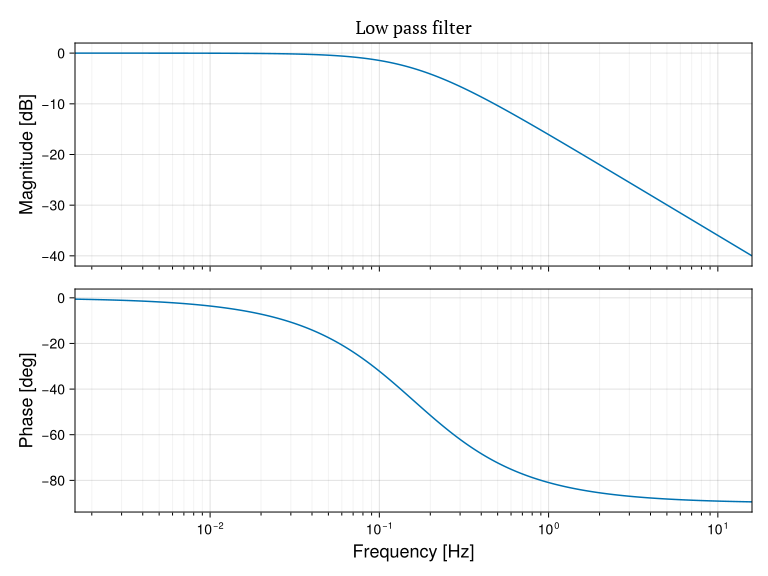
The frequency range is given as powers of ten, so from=-2, to=2 means 0.01 to 100 Hz. If you use ref_lines=true, reference lines at 0 dB and -180° are drawn, and the phase margin and the gain margin are shown with their values. If the phase of a loop with integrators ends up 360° away from the usual range, phase_offset=-360 moves it back.
2D animations
plot2d shows a system of points, connected by lines, like a video. It is fast, because the plot objects are only created at t=0. Later calls just move them.
using MakieControlPlots

x0 = 2.0
z0 = 0.0
for t in 0:0.1:5
    global x0, z0
    plot2d([[1,0,0], [x0,0,z0]], t; segments=1, fig="plot2d")
    x0 += 0.1; z0 += 0.1
    sleep(0.1)
end
This is useful, for example, to show a tether, modelled as point masses connected by springs, during a simulation. With a second argument you can define which points are connected, for example to draw a triangle; see the README.
Using it in scripts
Plot windows open without blocking, so a script continues to run while they are shown. To wait until the user has closed them, call wait_for_figures() at the end of the script. This is only needed on macOS:
using MakieControlPlots

X = 0:0.1:2pi
p1 = plot(X, sin.(X); fig="plot-1", title="First plot")
display(p1)
p2 = plot(X, cos.(X); fig="plot-2", title="Second plot")
display(p2)

wait_for_figures()
Use close("plot-1") to close one window and close("all") to close all of them.
Running the examples
The package comes with many examples. To try them:
using MakieControlPlots
MakieControlPlots.install_examples()
include("examples/menu.jl")
This copies the examples to the folder examples and installs ControlSystemsBase and LaTeXStrings. Select an example with the <UP>/<DOWN> keys and press <ENTER> to run it.
Conclusion
MakieControlPlots gives you the plots that control engineers need most often, with one function call each and without Python. If you need a plot that MakieControlPlots cannot make, you still have the full power of Makie. All function signatures are listed in the README. Bug reports and feature requests are welcome as GitHub issues.